Choose which one suits you:
No download required. Tali’s web app works right in your browser. Just click the button, log in, and start recording instantly. Use it to transcribe notes and generate summaries from any device, anytime.
Open Web App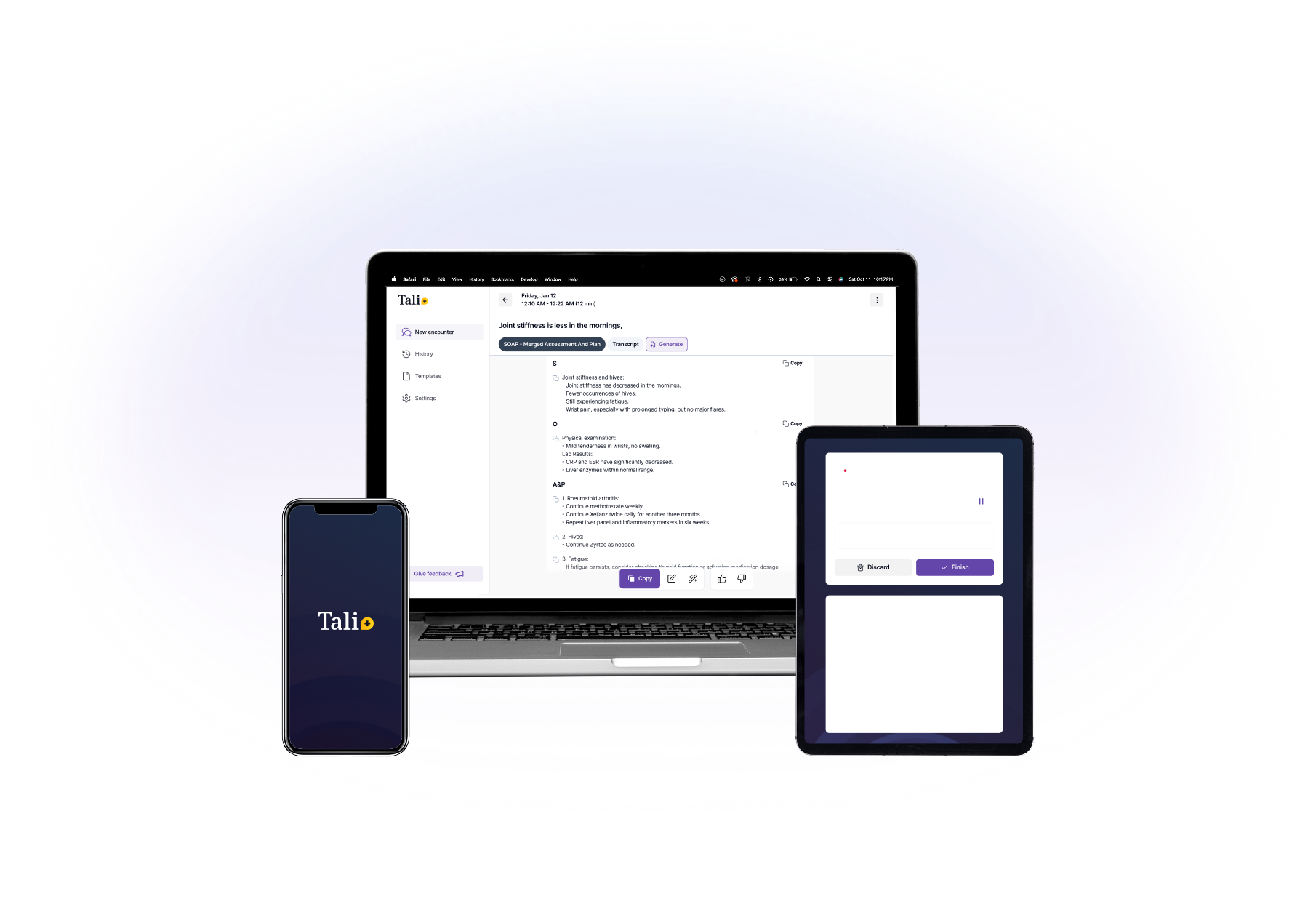


.svg%201.svg)

1
Step 1
No installation needed! Just click the Open Web App button at the top of this page. Tali will open directly in your browser, no downloads or extensions required.
2
Step 2
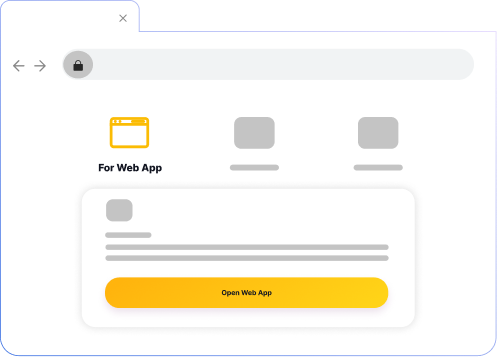
Once the web app opens, you’ll be prompted to log in or create an account. You can sign up using your email, Google, or Apple account. Already have a Tali account?Just log in and you’re good to go.
3
Step 3
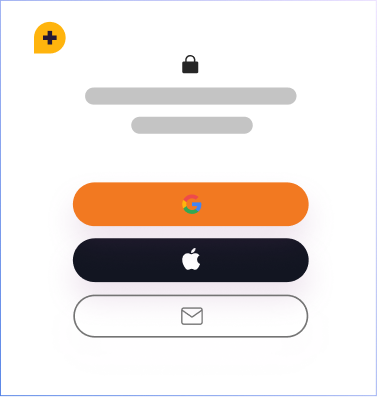
Tali is a voice-enabled medical scribe, so it needs access to your microphone to record and transcribe notes. When prompted, click Allow to grant microphone access. If you missed the prompt, click the lock icon in your browser’s address bar to manually enable microphone access.
4
Step 4
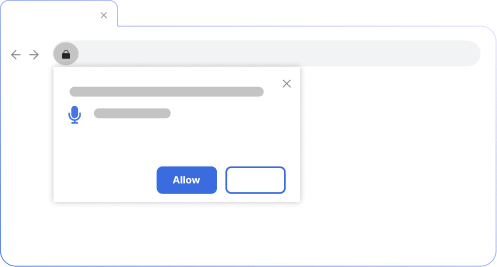
You're ready to start saving time with Tali. Use it to transcribe patient notes, generate summaries, and reduce documentation time. Providers using Tali are saving up to three hours a day.
It’s free to start, and you can unlock full access with a Pro subscription.
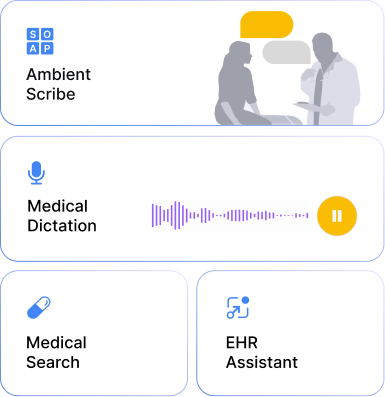

Download and install Tali AI directly on Google Chrome if your EHR runs on web browser. Gain access to Tali directly on your EHR.
Open Web App
Download and install Tali on your PC. You can use Tali AI on any EHR you canrun on your M1 Mac.
Open Web App1
Step 1
To install Tali Chrome extension, follow the link provided on the top of this page to the Google Extension Store. Click on Add to chromebutton, and click Add extension on the prompt. Tali then will be downloaded and installed automatically.

2
Step 2
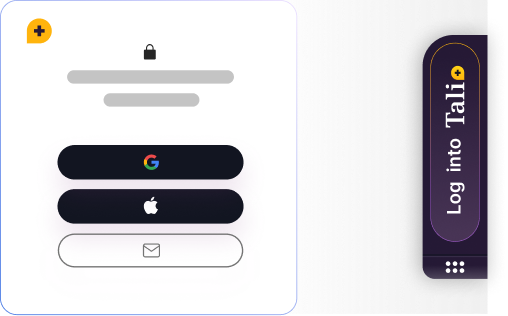
Once Tali is installed, a widget with a login button will appear in the right hand of your screen. If you don't see the widget simply refresh the page.
Click Log into Tali on the widget and you’ll be able to create an account with your email, Google or Apple account. If you already have a Tali account, proceeding with any of these will just log you into your account.
3
Step 3
Tali is a voice-enabled virtual assistant, so it requires microphone access to be able to work. The first time you try to use Tali on a new website, you will have to grant microphone access.
Select any text area within a webpage (like the patient's
E-chart on your EHR). Once the text area has been selected, the microphone icon in the widget will turn green. Click the green microphone and see a popup appear in the upper left corner of the browser. Click Allow to grant the extension permission to access your microphone.
You can change this permission by clicking on the lock icon located to the left of a webpage's url in Chrome's address bar.
4
Step 4
You're ready to start saving time with Tali. Use it to transcribe patient notes, generate summaries, and reduce documentation time. Providers using Tali are saving up to three hours a day.
It’s free to start, and you can unlock full access with a Pro subscription.
1
Step 1
To install Tali Windows app, follow the link provided on the top of this page. A file will be automatically downloaded to you computer. If the download didn't start automatically, refresh the page and try again.

2
Step 2
Locate the downloaded file on your computer and run the installation. The file is most likely located in your downloads folder. Simply follow on-screen instructions to proceed with the installation.

3
Step 3
Tali is a voice-enabled virtual assistant, so it requires microphone access to be able to work. The first time you try to use Tali, you will have to grant microphone access.
A notification pop up will appear on the bottom right of your screen, press the Grant Access button.

4
Step 4
Congrats! Start using saving time and effort by using Tali in your practice. With Tali, physicians are saving up to three hours a week on documentation, and their access to evidence-based medical information.
It is free to start, and you can get unlimited access with a premium subscription.
1
Step 1
To install Tali Mac app, follow the link provided on the top of this page. A file will be automatically downloaded to you computer. If the download didn't start automatically, refresh the page and try again.

2
Step 2
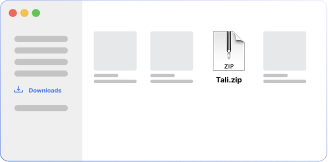
Locate the downloaded file on your computer. The file is most likely located in your downloads folder. Simply unzip the file and move the application to the applications folder.
3
Step 3
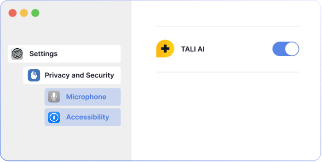
Through your System Settings > Privacy & Security, grant access to the Microphone and Accessibility features.
4
Step 4
Congrats! Start using saving time and effort by using Tali in your practice. With Tali, physicians are saving time on every patient visit.
It is free to start, and you can get unlimited access with a subscription.
Download Tali on your mobile device. For an enhanced recording experience, you can use your mobile device to transcribe notes and generate summaries. To use the mobile app, you must create an account online first.


1
Step 1
Use the QR code below to find the mobile app in your device’s app store.

2
Step 2
Log into your Tali account, using the same email address you used when creating the account on your computer.

3
Step 3
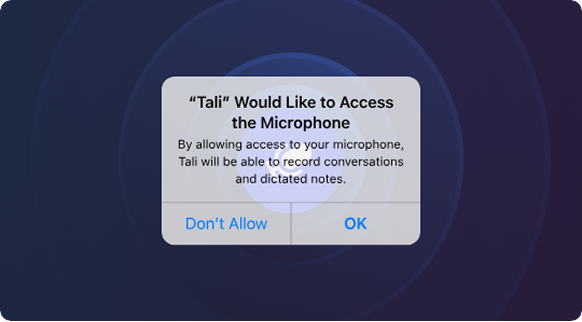
When prompted to do so, click ‘OK’ to allow Tali to use your device’s microphone.
4
Step 4
Use the mobile app to record a patient visit, clicking ‘Done’ when the visit is over.

5
Step 4
Paste the Note into Your EHR

No download required. Tali’s web app works right in your browser. Just click the button, log in, and start recording instantly. Use it to transcribe notes and generate summaries from any device, anytime.
Open Web App1
Step 1
No installation needed! Just click the Open Web App button at the top of this page. Tali will open directly in your browser, no downloads or extensions required.
2
Step 2
Once the web app opens, you’ll be prompted to log in or create an account. You can sign up using your email, Google, or Apple account. Already have a Tali account?Just log in and you’re good to go.
3
Step 3
Tali is a voice-enabled medical scribe, so it needs access to your microphone to record and transcribe notes. When prompted, click Allow to grant microphone access. If you missed the prompt, click the lock icon in your browser’s address bar to manually enable microphone access.
4
Step 4
You're ready to start saving time with Tali. Use it to transcribe patient notes, generate summaries, and reduce documentation time. Providers using Tali are saving up to three hours a day.
It’s free to start, and you can unlock full access with a Pro subscription.
1
Step 1
To install Tali Chrome extension, follow the link provided on the top of this page to the Google Extension Store. Click on Add to chromebutton, and click Add extension on the prompt. Tali then will be downloaded and installed automatically.
2
Step 2
Once Tali is installed, a widget with a login button will appear in the right hand of your screen. If you don't see the widget simply refresh the page.
Click Log into Tali on the widget and you’ll be able to create an account with your email, Google or Apple account. If you already have a Tali account, proceeding with any of these will just log you into your account.
3
Step 3
Tali is a voice-enabled virtual assistant, so it requires microphone access to be able to work. The first time you try to use Tali on a new website, you will have to grant microphone access.
Select any text area within a webpage (like the patient's
E-chart on your EHR). Once the text area has been selected, the microphone icon in the widget will turn green. Click the green microphone and see a popup appear in the upper left corner of the browser. Click Allow to grant the extension permission to access your microphone.
You can change this permission by clicking on the lock icon located to the left of a webpage's url in Chrome's address bar.
4
Step 4
You're ready to start saving time with Tali. Use it to transcribe patient notes, generate summaries, and reduce documentation time. Providers using Tali are saving up to three hours a day.
It’s free to start, and you can unlock full access with a Pro subscription.
1
Step 1
To install Tali Windows app, follow the link provided on the top of this page. A file will be automatically downloaded to you computer. If the download didn't start automatically, refresh the page and try again.
2
Step 2
Locate the downloaded file on your computer and run the installation. The file is most likely located in your downloads folder. Simply follow on-screen instructions to proceed with the installation.
3
Step 3
Tali is a voice-enabled virtual assistant, so it requires microphone access to be able to work. The first time you try to use Tali, you will have to grant microphone access.
A notification pop up will appear on the bottom right of your screen, press the Grant Access button.
4
Step 4
Congrats! Start using saving time and effort by using Tali in your practice. With Tali, physicians are saving up to three hours a week on documentation, and their access to evidence-based medical information.
It is free to start, and you can get unlimited access with a premium subscription.
1
Step 1
To install Tali Mac app, follow the link provided on the top of this page. A file will be automatically downloaded to you computer. If the download didn't start automatically, refresh the page and try again.
2
Step 2
Locate the downloaded file on your computer. The file is most likely located in your downloads folder. Simply unzip the file and move the application to the applications folder.
3
Step 3
Through your System Settings > Privacy & Security, grant access to the Microphone and Accessibility features.
4
Step 4
Congrats! Start using saving time and effort by using Tali in your practice. With Tali, physicians are saving time on every patient visit.
It is free to start, and you can get unlimited access with a subscription.


Tali AI is available as an extension for Google Chrome, and as a desktop application for Windows 7-11 and Mac Intel and M1.
Open this page on
your desktop to Install Tali.
Download Tali on your mobile device. For an enhanced recording experience, you can use your mobile device to transcribe notes and generate summaries. To use the mobile app, you must create an account online first.
Download Tali on your mobile device to record, transcribe, and summarize notes. Create your account online first to get started.
Download Mobile App1
Step 1
Use the QR code below to find the mobile app in your device’s app store.
2
Step 2
Log into your Tali account, using the same email address you used when creating the account on your computer.
3
Step 3
When prompted to do so, click ‘OK’ to allow Tali to use your device’s microphone.
4
Step 4
Use the mobile app to record a patient visit, clicking ‘Done’ when the visit is over.
5
Step 4
Paste the Note into Your EHR
1
Step 1
No installation needed! Just click the Open Web App button at the top of this page. Tali will open directly in your browser, no downloads or extensions required.
2
Step 2
Once the web app opens, you’ll be prompted to log in or create an account. You can sign up using your email, Google, or Apple account. Already have a Tali account?Just log in and you’re good to go.
3
Step 3
Tali is a voice-enabled medical scribe, so it needs access to your microphone to record and transcribe notes. When prompted, click Allow to grant microphone access. If you missed the prompt, click the lock icon in your browser’s address bar to manually enable microphone access.
4
Step 4
You're ready to start saving time with Tali. Use it to transcribe patient notes, generate summaries, and reduce documentation time. Providers using Tali are saving up to three hours a day.
It’s free to start, and you can unlock full access with a Pro subscription.
1
Step 1
To install Tali Chrome extension, follow the link provided on the top of this page to the Google Extension Store. Click on Add to chromebutton, and click Add extension on the prompt. Tali then will be downloaded and installed automatically.
2
Step 2
Once Tali is installed, a widget with a login button will appear in the right hand of your screen. If you don't see the widget simply refresh the page.
Click Log into Tali on the widget and you’ll be able to create an account with your email, Google or Apple account. If you already have a Tali account, proceeding with any of these will just log you into your account.
3
Step 3
Tali is a voice-enabled virtual assistant, so it requires microphone access to be able to work. The first time you try to use Tali on a new website, you will have to grant microphone access.
Select any text area within a webpage (like the patient's
E-chart on your EHR). Once the text area has been selected, the microphone icon in the widget will turn green. Click the green microphone and see a popup appear in the upper left corner of the browser. Click Allow to grant the extension permission to access your microphone.
You can change this permission by clicking on the lock icon located to the left of a webpage's url in Chrome's address bar.
4
Step 4
You're ready to start saving time with Tali. Use it to transcribe patient notes, generate summaries, and reduce documentation time. Providers using Tali are saving up to three hours a day.
It’s free to start, and you can unlock full access with a Pro subscription.
1
Step 1
To install Tali Windows app, follow the link provided on the top of this page. A file will be automatically downloaded to you computer. If the download didn't start automatically, refresh the page and try again.
2
Step 2
Locate the downloaded file on your computer and run the installation. The file is most likely located in your downloads folder. Simply follow on-screen instructions to proceed with the installation.
3
Step 3
Tali is a voice-enabled virtual assistant, so it requires microphone access to be able to work. The first time you try to use Tali, you will have to grant microphone access.
A notification pop up will appear on the bottom right of your screen, press the Grant Access button.
4
Step 4
Congrats! Start using saving time and effort by using Tali in your practice. With Tali, physicians are saving up to three hours a week on documentation, and their access to evidence-based medical information.
It is free to start, and you can get unlimited access with a premium subscription.
1
Step 1
To install Tali Mac app, follow the link provided on the top of this page. A file will be automatically downloaded to you computer. If the download didn't start automatically, refresh the page and try again.
2
Step 2
Locate the downloaded file on your computer. The file is most likely located in your downloads folder. Simply unzip the file and move the application to the applications folder.
3
Step 3
Through your System Settings > Privacy & Security, grant access to the Microphone and Accessibility features.
4
Step 4
Congrats! Start using saving time and effort by using Tali in your practice. With Tali, physicians are saving time on every patient visit.
It is free to start, and you can get unlimited access with a subscription.
1
Step 1
Use the QR code below to find the mobile app in your device’s app store.
2
Step 2
Log into your Tali account, using the same email address you used when creating the account on your computer.
3
Step 3
When prompted to do so, click ‘OK’ to allow Tali to use your device’s microphone.
4
Step 4
Use the mobile app to record a patient visit, clicking ‘Done’ when the visit is over.
5
Step 4
Paste the Note into Your EHR